New Online Training: Art Portfolio Reviews

Alumni Admissions Ambassadors from across the country can now learn to review the arts portfolios of prospective students who may be interested in applying to Lesley University. Alumni Ambassadors with a background in the arts will use online, self-paced training to learn how to assess arts portfolios and to communicate with students during portfolio review events.

This new training system is being piloted this fall semester and will be used will be used by BFA and MFA alumni admissions ambassadors. This effort to extend and streamline the training process is important to the goal of enlisting more ambassadors with training and experience in the arts to assist prospective Lesley students in applying to our university.

Central to the training was the development of a set of guidelines by which to assess portfolios. These guidelines were tested by a group including recent Lesley alums and members of the Marketing Design team and updated based on their input. Trainees will learn to assess portfolios primarily by reviewing many sample portfolios and receiving automated feedback on their choices.
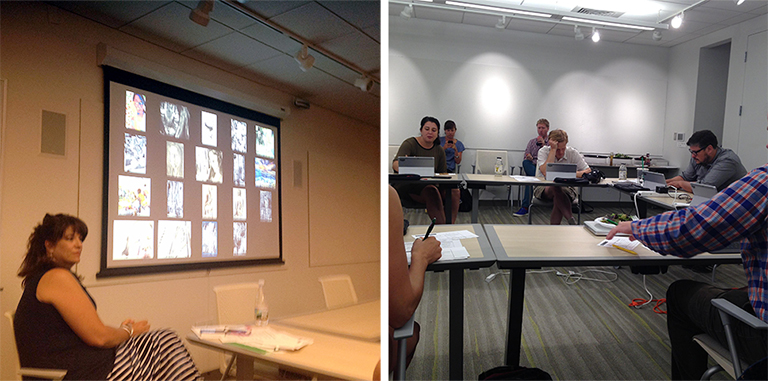
Arts Portfolio Guidelines Pilot Testing Event: Lunder Arts Center

Arts Portfolio Guidelines Pilot Testing Event: Lunder Arts Center

The development of this training has been a collective effort involving staff from the Alumni Recruitment, Undergraduate Admissions, and eLearning and Instructional Support departments.

If you have any questions or would like to learn more about this project, please contact Liana Caffrey (Director) or Shirley Chin (Sr. Assistant Director) of the Alumni Admissions Ambassador Program: lcaffrey@lesley.edu (x8201); schin@lesley.edu (x8806).

Project Staff

Alumni Admissions Ambassador Program: Liana Caffrey, Director; Shirley Chin, Sr. Assistant Director.

Undergraduate Admissions: Erik Gullard, Assistant Director / BFA Specialist; Mike McCarthy, Assistant Director; Lauren O’Neill, Assistant Director / BFA Specialist / International Student Coordinator.

eLearning and Instructional Support: Robyn Belair, Instructional Technologist/Interface Designer; John McCormick, Director of eLearning Design; Bill Porter, Learning Technology Designer
Creating Links in myLesley

In today’s exciting episode, Agent L defeats Gremlins in the System’s (GITS) attempt to prevent faculty and students from creating links in myLesley.

ALvsGITS

Ben Friday: Agent L, we have an emergency! GITS is preventing faculty and students from creating links in myLesley!

Agent L: How? What’s happening?

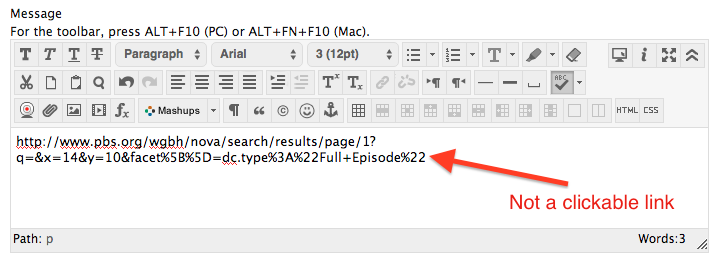
Ben: Faculty and students are pasting links to other websites in the text editor, but they aren’t turning into links. They are just plain text… and some of the links don’t look very good either.

text editor with non-clickable link

Agent L: Hmmmm… I think I know how to fix this. myLesley’s text editor has a tool to create links. It’s called the Insert/Edit Link tool.

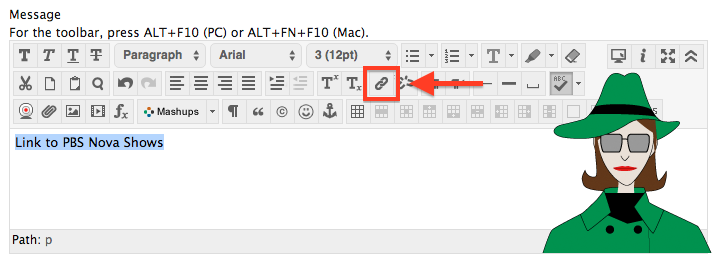
You simply select the text you want to be a link such as the pasted link, or if you want those long links to look nicer, type a few words to define the website you are linking to and select that text just as I’ve done below.

create a link

Then click on the Insert/Edit Link tool.

Paste your copied link into the LInk Path text box.

create link settings

For Agent Extra Credit, change the Target to Open in a New Window (_blank). Websites don’t always display well in the myLesley content frame. Opening them in a new window gives them the full browser window and all the options.

Finally click Insert. You can then finish writing your post or content in the text editor. Click Submit when you are done and you will have a nice looking clickable link. Simple.

final clickable link

BenBen: Wow, Agent L! Way to outsmart GITS!

Agent L: It’s my mission, Ben.


agent LLearn more about using the myLesley text editor at the Agent Support Site.

Taking Notes Across Your Devices

Started taking notes on your computer and now you’re sitting on the bus and want to review them? Standing in line to get your coffee and have a brilliant idea? Want to jot it down or add to already existing notes? Don’t have internet access, but need to jot something down? Tired of having to copy notes from your phone to your computer and back again.

Is the answer to all of those questions a loud YES!?!?!

evernote logo

Allow me to introduce you to Evernote.

What is Evernote?

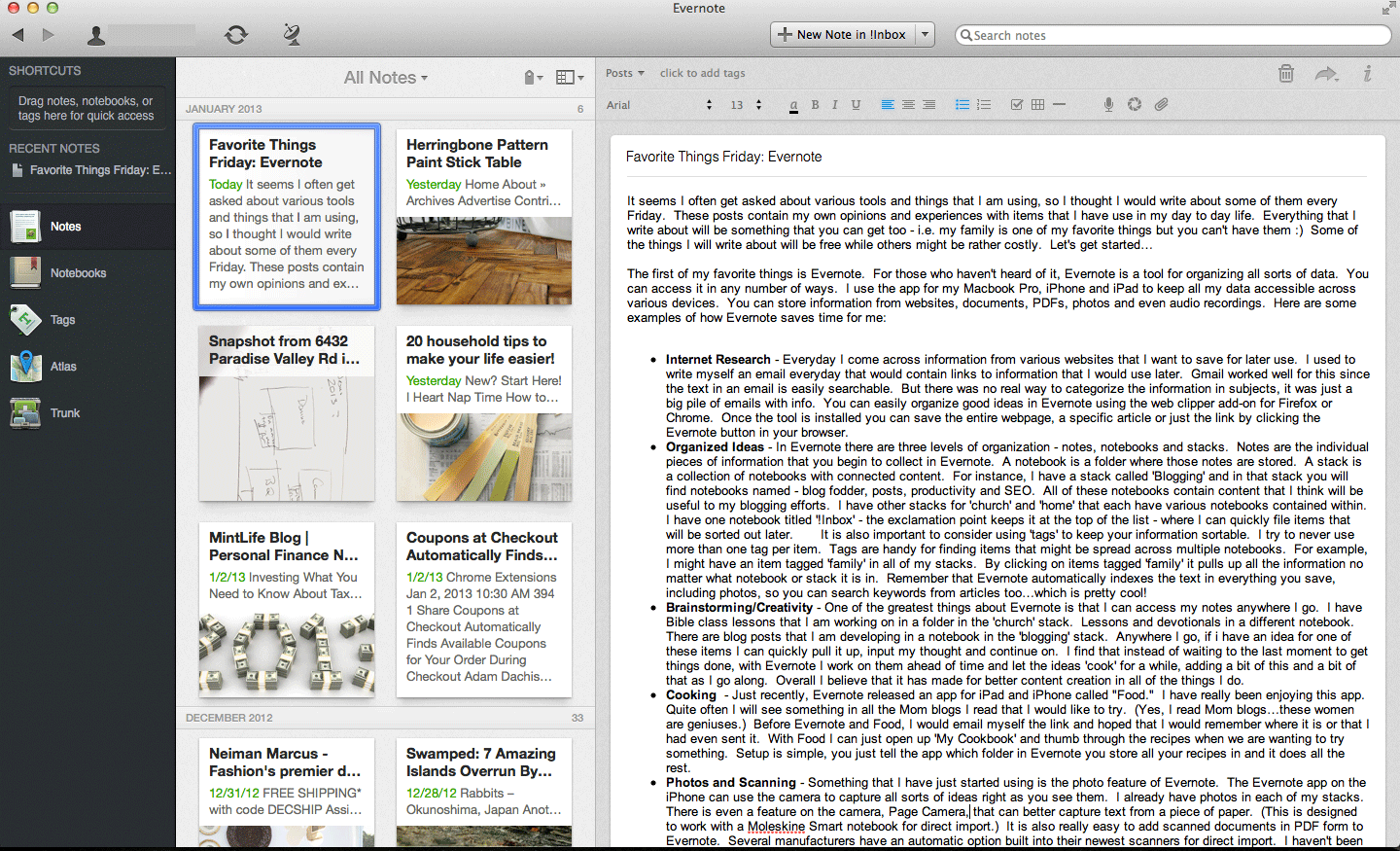
Evernote is both a digital notebook and digital file cabinet. Take notes while in a meeting or draft documents just as you might in Microsoft Word. Create a to do list or checklist for a project or chore. Attach and annotate a PDF document. Use your microphone to record a quick audio note. Take a picture with your phone or upload an image from your computer. Clip a web page from the internet. Tag items with keywords and group them all together in a notebook to easily find later.

evernote layout

image from www.dadislearning.com/

Why is Evernote Awesome?

Evernote’s true power is in its ability to work across devices. Have access to all your notes regardless of where you are. Create a note on your computer using Evernote’s desktop application and then move to your iPad during your meeting. Jot down or audio record that quick brainstorm your phone while riding the bus home. Your notes will sync to your account and move with you to whatever device you are on.

Don’t have internet access, but need to take notes and don’t want to have to remember to copy them to Evernote later. No problem. Evernote will upload it to your account the next time you connect to the internet with that device. You can even share notes with colleagues.

Evernote lets you decide where you work and on what type of device: laptop or desktop computer, iOS or Android. There’s no special file formats or exporting to deal with. Just take notes and organize them. Simple.

How do I get started?

To get started with Evernote, go to https://evernote.com/ to create your account.

Then download the software for the devices you own:

Review video tutorials for Evernote to learn more at Lesley’s Atomic Learning portal. Sign in with your myLesley username and password when prompted.

Pasting Text from Word to myLesley

In this Agent L episode, faculty overcome stubborn and ugly formatting in myLesley.

BenBen Friday: Agent L, we’ve had reports of faculty not being able to reformat their content in myLesley. We believe it may be a new GITS (Gremlins in the System) plot.

Agent L: GITS? Are you sure? What exactly is happening?agent L

Ben: Faculty copy their content from MS Word and paste it into myLesley. Then they can’t change the formatting. If they try to change the font or size, nothing happens. It must be GITS trying to sabotage their work.

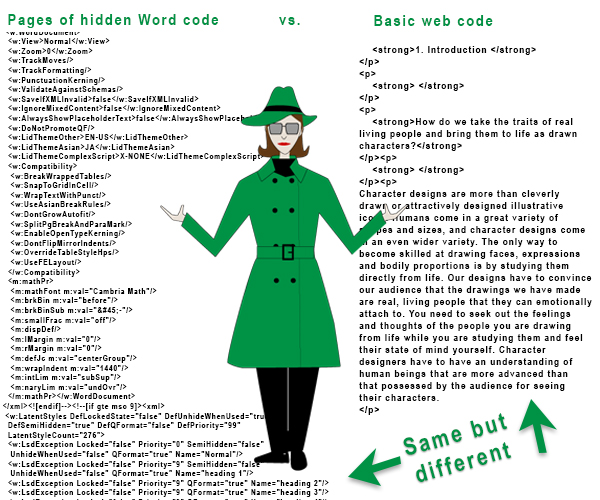
Agent L: Ben, I don’t think this is GITS. It’s just a mismatch between Word and myLesley. Word creates text that is meant to be printed out while myLesley creates text meant to be viewed on the web. Behind the scenes, this looks and acts very different.

Word vs. web code

Agent L: When faculty copy their text from Word, all of Word’s print code comes with it and myLesley doesn’t know how to read it. We just need to translate that copied text for myLesley.

Ben: How do we do that?

Agent L: Easy. Just clear the formatting. Select the text you wish to reformat. Then click the Remove Formatting button at the end of the first row of the text editor tools.

remove formatting tool

Agent L: Voila! myLesley will clear the troublesome Word formatting and you can now format your text as you wish.

Ben: That’s brilliant! And so easy!

Agent L: Think nothing of it. It’s all in a day’s work for an agent.

Check back for Agent L’s next exciting mission. For more information on using the text editor in myLesley, see the case file on the Agent Support site.

Creative Commons: Can I Use That?

Has your class kicked off, but you still need some last minute images to reinforce a certain topic? Do your students need to do a presentation that will involve images or media? Planning to just grab stuff off Google?

stop

Just because an image, video or even PDF is online, doesn’t mean that you can use it or share it in your course. Much of this content is copyrighted and you shouldn’t use it without permission from the owner. THOU SHALT NOT VIOLATE COPYRIGHT. “But what about fair use? I’m using it for my course,” you say. Fair use may cover your situation, but the guidelines can be tricky to navigate and you may want to consult your local librarian for assistance.

Fortunately, there’s another option… a free, completely legal option that doesn’t run afoul of copyright. Creative Commons.

Creative Commons is an alternative to copyright that allows individuals to easily share their work with others and to specify how that work can be used. An author or artist can allow you to use and share their work as long as you acknowledge them, but not allow you to edit it. Other authors may allow you to remix and reuse as much as you wish as long as you aren’t making money from it. Look for the Creative Commons – Some Rights Reserved icon.
creative commons

Click on it to get the details on how you can use the work.

Want more info?
Digital ID has a great, easy to read guide written by an educator, not a lawyer. Can I Use That? explains:

  • what Creative Commons is,
  • how to find Creative Commons content that you can use,
  • how to cite Creative Commons licensed content and
  • how to license your own work .

For a quick overview of Creative Commons, check out their short video below.