Instructional Continuity – Moving Content Online

The early months of 2015 saw record-breaking snowfall in the Boston area, causing wide-spread school closings. What do you do when you need to cancel class or the university is closed for inclement weather or a flu outbreak? How do you ensure that your students don’t fall behind?

In this second post in our Instructional Continuity series, we’ll explore some ideas and strategies faculty have used for moving content online.

Uploading Content to myLesley
As you plan ahead for the possibility of storm closings, you may want to think about moving some of your content online. Uploading content online is not only useful for storm preparations, but also a convenient place to store your course content so that you and your students can access it easily throughout the term.

I added content to the course in My Lesley each week for the 3 weeks when class was canceled.  Each week I did something different including: a short voice recording of me explaining a concept from one of the assigned readings, short written lecture type post on the class topic for the week, and, for one week, I posted a selection of media on the topic and asked students to review one (a report, 2 videos, a list of websites, article) in lieu of class meeting.
Jennifer Hart
Expressive Therapies GSAS

Upload your syllabus to myLesley. Think about including some information in your syllabus about how class will be handled in the case of illness or emergency cancellations.

Do you typically hand out readings or email documents to your students? Upload your documents to myLesley. Does the content already exist online? Link to it from your course.

Do you show PowerPoint presentations in class? Upload copies of your presentations to myLesley. Looking to bring your presentation to the next level? Use VoiceThread to add voice or video narration.

Looking to step up the technology a bit? Use Kaltura to create a webcam recording to introduce a new topic, explain a concept from the readings, or provide additional information about an assignment.

Moving Assignments Online
As in face-to-face instruction, online assignments take many different forms.

I put my class assignments online.  Students were held accountable for reading through discussion board questions and assignments.  In addition, class discussions were translated to journal assignments or discussion boards.
Joshua Baldwin
Social Sciences

Do you regularly have your students participate in class discussions? Try using the myLesley Discussion Board to replace or enhance classroom discussion.

Do your regularly have your students reflect on their readings or assignments? Try using the myLesley Blogs or Journals.

Do your students need to turn in papers or other written assignments? Try using the myLesley Assignment tool. You can post, collect, and grade the assignment all from within myLesley.

Looking for more ideas? Visit Planning for Instructional Continuity for guidelines on creating an emergency plan for your course. And stay tuned for next week’s Instructional Continuity blog post. To view all posts in this series, go to https://www.lesleyelis.com/elisblog/category/snowdays

Instructional Continuity: Communicating with Your Students

The early months of 2015 saw record-breaking snowfall in the Boston area, causing wide-spread school closings. What do you do when you need to cancel class or the university is closed for inclement weather or a flu outbreak? How do you ensure that your students don’t fall behind?

In this first post in our Instructional Continuity series, we’ll explore some ideas and strategies faculty have used for communicating with students and replicating classroom discussions during school closures.

Synchronous Communication
Class has been cancelled but you and your students are still available to meet, albeit remotely. The solution? How about a conference call? You can use a free conference call number (such as freeconferencecall.com) to connect with all of your students at once.

I scheduled a conference call during which we talked in real-time about some of the course content; I explained several concepts, and gave the students opportunities to discuss them.  It wasn’t perfect, of course, but students later told me they were glad there were ways for us to keep in touch during all those snow cancellations.

Donna Halper
Business Management and Communication

Looking to step up the technology a bit? Try scheduling an online meeting via Skype for Business (Lync). Skype for Business allows you to create an online meeting where you may communicate with your students, present information, or share your screen.

Please note that in the case of widespread power outages students may have limited internet and/or phone access. If this is the case you may want to try some asynchronous options.

Asynchronous Communication
Instead of meeting in real time, you may choose to hold your conversations asynchronously. Unlike a synchronous tool, asynchronous activities take place when it is convenient for each person. Some ideas for asynchronous communication include email and online discussions.

Email is a great way to keep in touch with your students. You may send emails to all of your students, groups of students, or individual students.

Some students could not come in [because of the weather], but class was never cancelled. For students who could not make the commute I gave alternate assignments via email.
Lynette Cassel
Expressive Therapies GSAS

Use the Send Email tool in myLesley to send messages to your students without ever leaving the course.

Looking to have a more in-depth conversation? The myLesley Discussion Board allows you to replace or enhance classroom discussions in a digital format. Discussions can serve as an online meeting place, a place for collaboration, or a way to demonstrate the understanding or application of course material.

I assigned students a reading response in the course discussion board.  They were responsible for exploring a movement therapy concept in the theme of movement observation.  After completing the readings I had them move through these themes on their own, look for visual images that reflected their experience and post these images into the discussion board.  They had to post these images with a description of their body experience and how that shaped their understanding of the concept.  They then had to respond to at least 2 other peer comments.
Valerie Blanc
Expressive Therapies GSAS

Looking for more ideas? Visit Planning for Instructional Continuity for guidelines on creating an emergency plan for your course. And stay tuned for next week’s Instructional Continuity blog post.

VoiceThread: New Ways to Comment

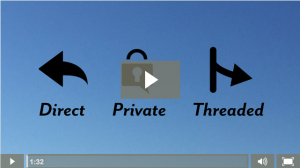
VoiceThread now offers new commenting options: direct replies, private replies, and threaded conversations.

Direct Reply to a Comment
If you are the owner or editor of a VoiceThread, may insert a comment directly after someone else’s comment on your slide, allowing you to help guide the conversation and give feedback directly to your participants.

VoiceThread Direct Reply

Private Reply to a Comment
The private reply feature allows you to start a private, two-way conversation with someone who has commented on a VoiceThread.  To start a new private conversation, or add to an existing one, click on the private reply button inside a person’s comment window.

VoiceThread Private Reply

Threaded Commenting
If you own a VoiceThread, you can turn on threaded commenting in your VoiceThread settings.  This allows your participants to start a separate comment thread that branches from the main conversation.  To start a new threaded conversation, click on the threaded comment button inside a person’s comment window.

VoiceThread Threaded Commenting

For an overview of these features, please see VoiceThread Commenting or watch the video overview:
VoiceThread Commenting Video ScreenshotReady to try the new commenting options? Log in to VoiceThread using your myLesley username and password.


Technology Innovation Grant: Infusing iPads into EEDUC 5104: Literature for Children and Young Adults

“Through the support of this Technology Innovation Grant I hope to further my own knowledge, improving my abilities to model effective and innovative technology integration for the practicing and prospective teachers in my courses.” Erika Dawes, Associate Professor, Literacy

Erika Dawes, Associate Professor, Graduate School of Education is the most recent recipient of a Lesley University Technology Innovation Grant. The grant award will be used to purchase an iPad Pro (Wi-Fi 32GB), essential accessories and iTunes credits for purchasing apps. Access to the iPad Pro will allow Erika to test and evaluate content creation apps, prepare presentations and platforms for content exploration, as well as increase her competence with using a tablet as an instructional tool.

This spring, in her Children’s Literature course, Erika will be employing a set of 11 iPads (previously purchased for the GSOE with a Verizon grant) with the goal of trying to understand how this type of technology can improve the learning experience of teacher candidates while simultaneously serving as models for ways they could incorporate technology into their teaching methods and curriculum design.

EEDUC 5104: Literature for Children and Young Adults is a survey course focusing on resources for locating and evaluating literature across a wide range of genres and serves as an introduction to teaching strategies. Erika’s objective is for her students to become familiar with a range of content creation apps that can be used to encourage, facilitate, and share responses to literature and text sets. Her other goal is for the students to articulate an orientation toward the integration of technology in curriculum design and instruction. By incorporating the use of iPads, Erika plans to assess “whether a tech tool exists that would improve either [her] delivery of content or the students’ opportunity to process and innovate on content.” As part of this assessment Erika will be administering a pre and post course survey where she will ask the practicing and prospective teachers about the potential effectiveness of tech tool integrations. Lesley University sets aside dedicated funding each year to support faculty who are integrating technology into their academic work. The Technology Innovation Grant is open to Lesley University faculty and the application deadline is rolling. For details on grant program and the application process, contact eLearning and Instructional Support at elis@lesley.edu.

Fixing Broken Wiki Links

In this week’s Agent L episode, Gremlins in the System (GITS) try to undermine student collaboration by breaking links to wikis in myLesley courses. It’s Agent L to the rescue.

BenBen Friday: Agent L, it’s a disaster. GITS agent, NeoLuddite, has broken all the links to course wikis in myLesley. Look…

Error: Broken Course Link: Item does not exist in the system. The specified object was not found.

Agent L: What does he hope to accomplish?

Ben: NeoLuddite thinks technology is going to ruin education. By corrupting links to the wikis,  he hopes to stop students from collaborating online. We can’t let him win.

neoluddite_sq

Agent L: Letting NeoLuddite win is not an option. The wiki links can be fixed.

Ben: How?

Agent L: It’s easy, Ben. We simply delete the old link to the wiki and create a new one.

Ben: But won’t that delete the wiki?!?agent L

Agent L:
Not at all. The wiki is still there with all the students’ work. We just need to
recreate the link to allow them to find it again.

Ben: How do we do that?

Agent L: Simple. Let’s go into a course and I’ll show you.

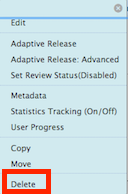
First, let’s delete the bad link. Click on the small gray arrow at the end of the wiki title and select Delete from the menu.

course wiki link     deletelink

Remember, this is only deleting the link, not the wiki.

Now, we can recreate the link. go to the Tools menu and select Wikis.

Tools menu

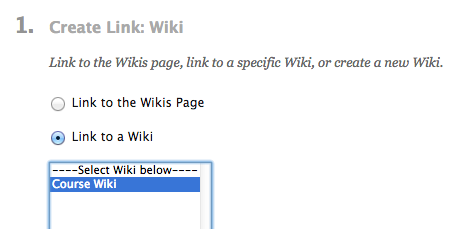
Select Link to Wiki to choose to create a link to an existing wiki and select the name of the wiki from the list. Then click Next.

select wiki link

Add a description or instructions for you students and click Submit. That’s all there is to it.

Ben: It’s working. I can access the wiki and see everyone’s contributions. It’s all there.

Agent L: Of course. NeoLuddite can’t get the best of us. We have technology at our disposal.


agent LSee the complete instructions at the Agent Support Site.