Let’s Talk ‘Teaching for Tolerance’ on Twitter in Honor of International Day for Tolerance

Today – Monday, November 16 – is the International Day for Tolerance. Education, whether it happens in the classroom or online, is one of the crucial ways our society can advance tolerance and inclusion, so it’s more important than ever to acknowledge this occasion within our Lesley teaching community by having important conversations. Today, we invite you to join in the discussion about teaching for tolerance on Twitter.

eLIS will be Tweeting throughout the day from our account (@lesleyelis) using #ToleranceDay @lesley_u. Feel free to watch for new content, retweet us, or share your own experiences, ideas and opinions with the hashtag #ToleranceDay @lesley_u.

And don’t forget that the conversation doesn’t have to stop after today! Social media is an excellent tool for building and strengthening our institutional community. Join us on Twitter anytime to connect and collaborate with fellow faculty members throughout the university.

Learning Beyond the Classroom: Case Studies of Teaching and Learning with Social Media

This post is adapted from a poster presentation developed by eLIS staff and Lesley faculty for the New England Faculty Development Consortium (NEFDC) fall conference:

The use of social media in higher education teaching and learning is becoming increasingly common every year. Many faculty are enthusiastic about the prospect of using social media tools to extend classroom walls and create technology-enhanced learning activities that are relevant for their students’ lives. Against this backdrop, however, faculty need to be mindful of recent FERPA legislation, as well as consider the establishment of best practices for facilitating authentic, learner-centered social media experiences that are respectful of students’ privacy wishes.

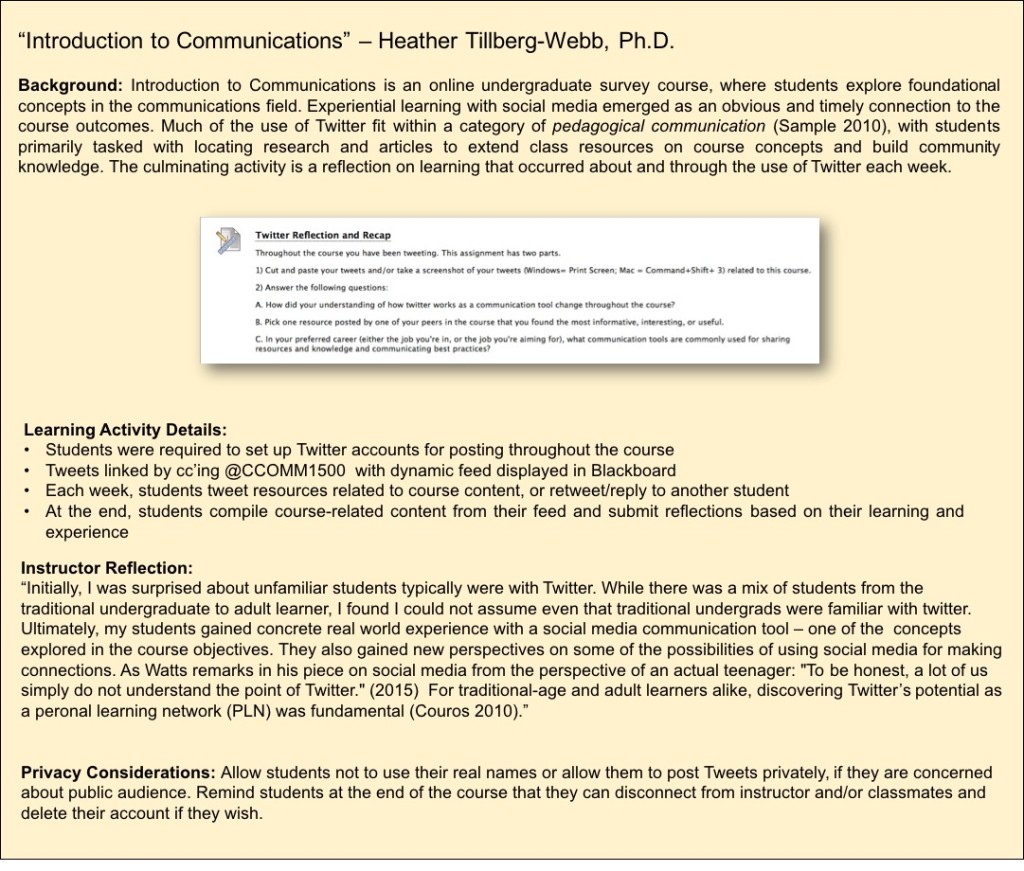
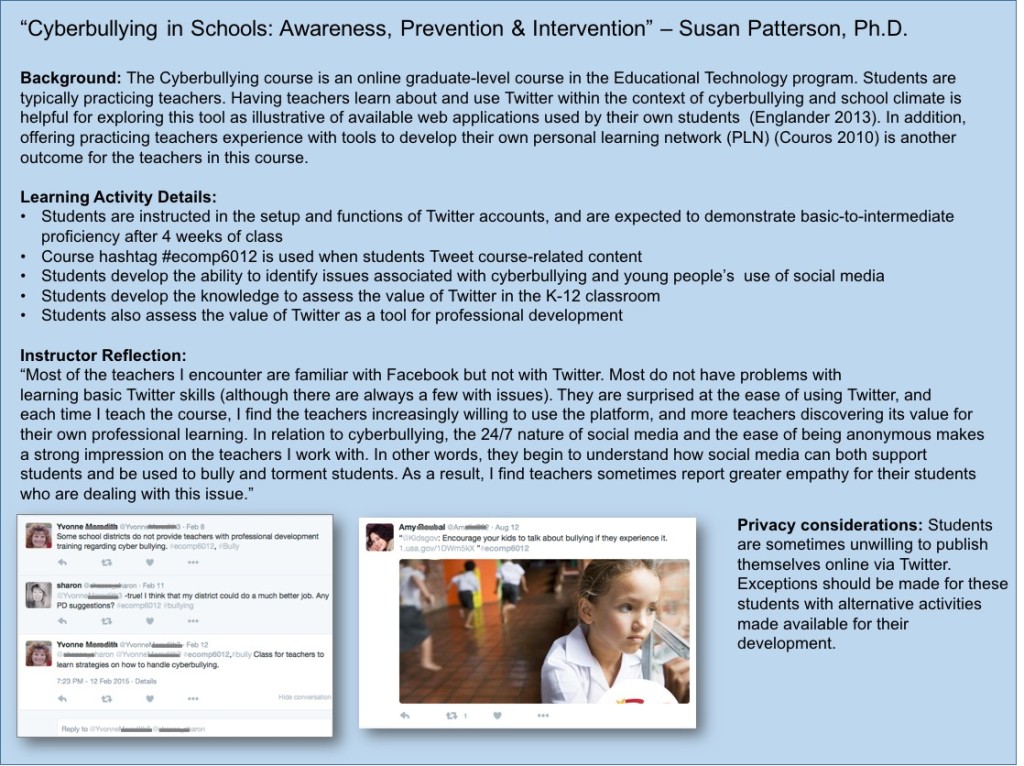
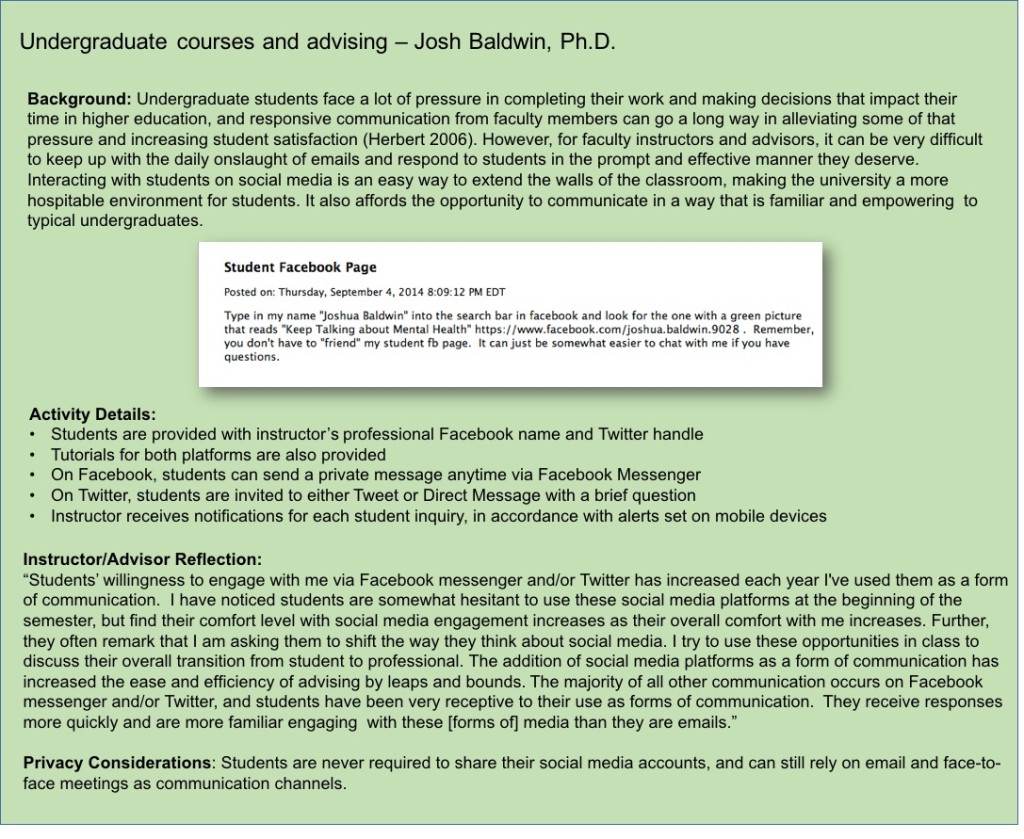
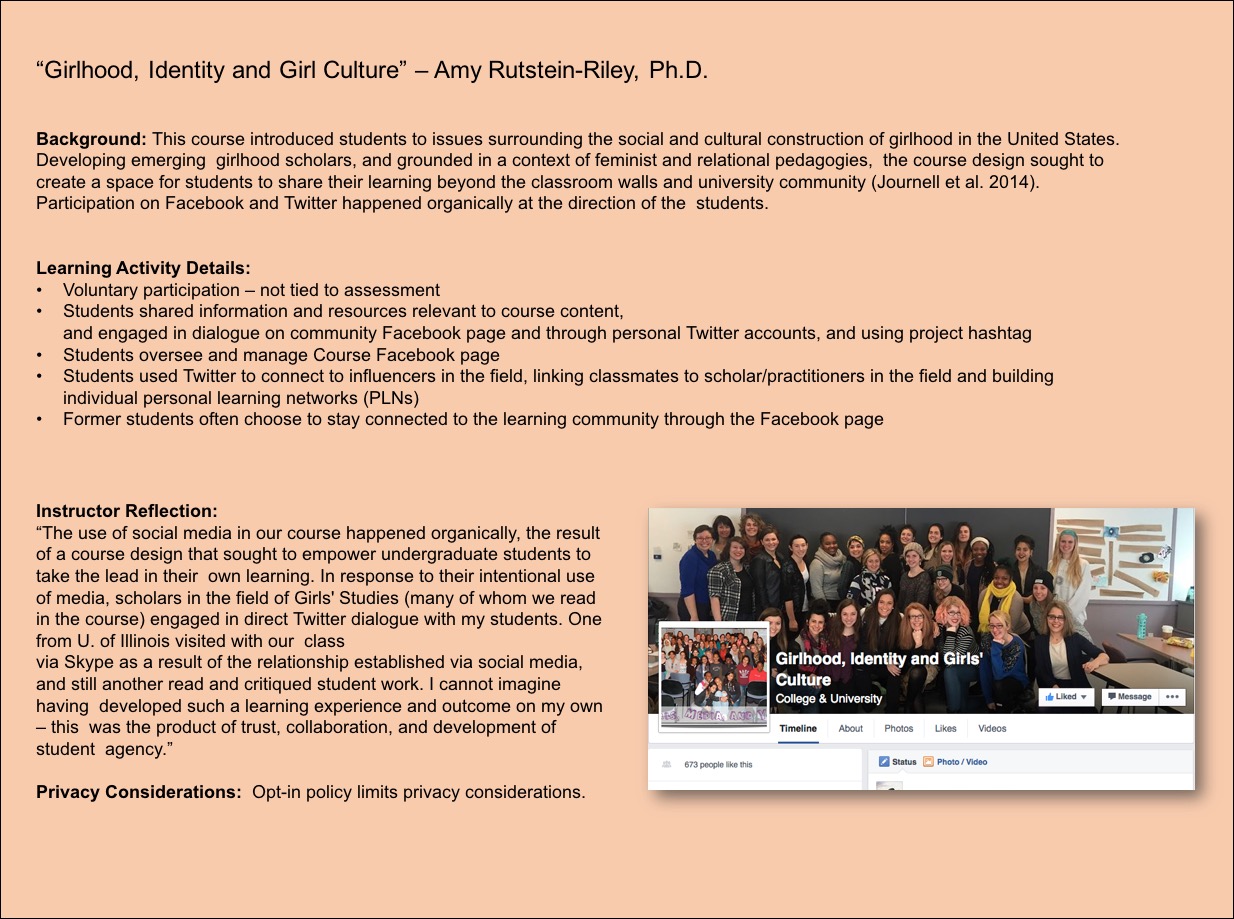
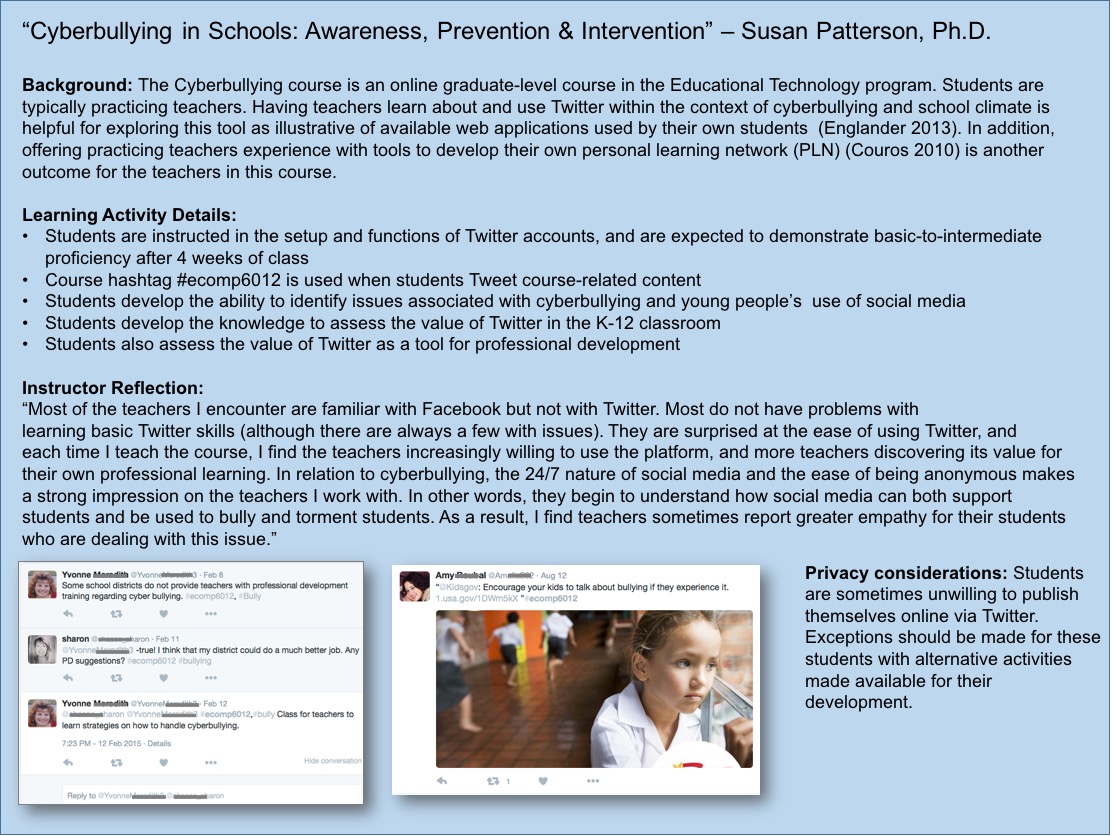
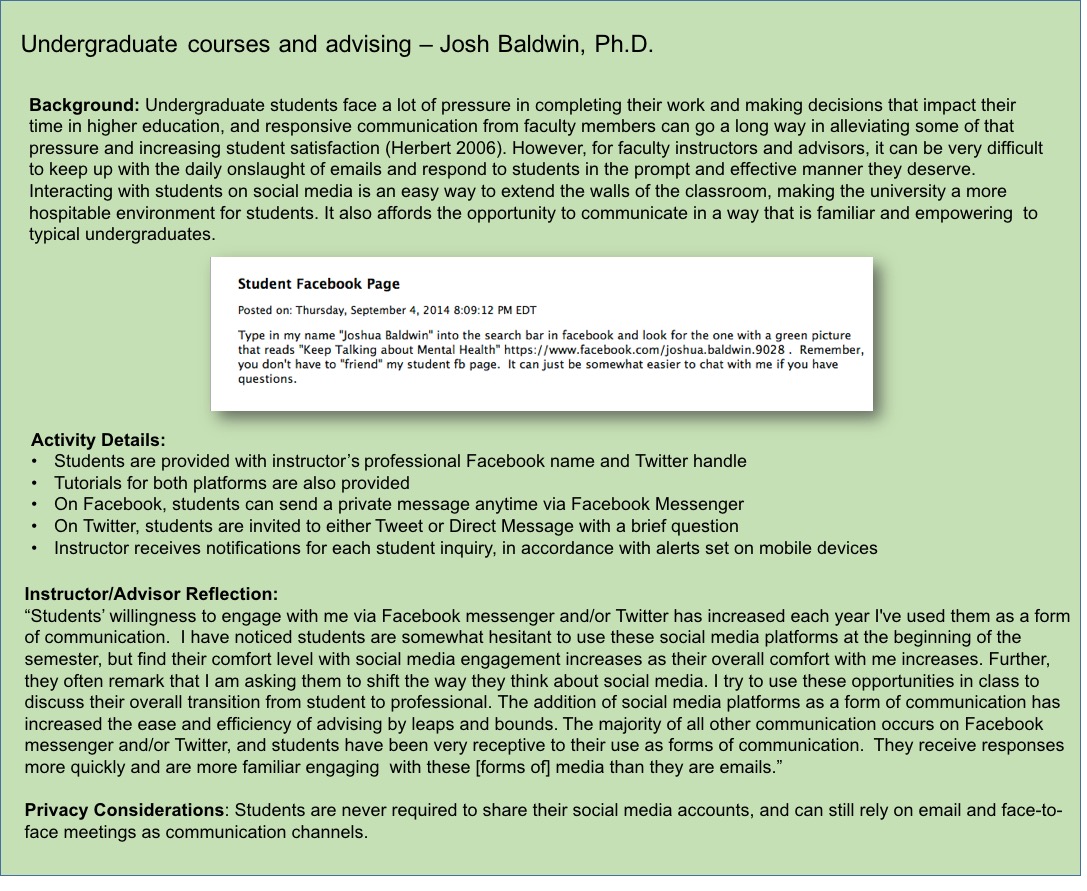
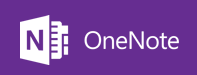
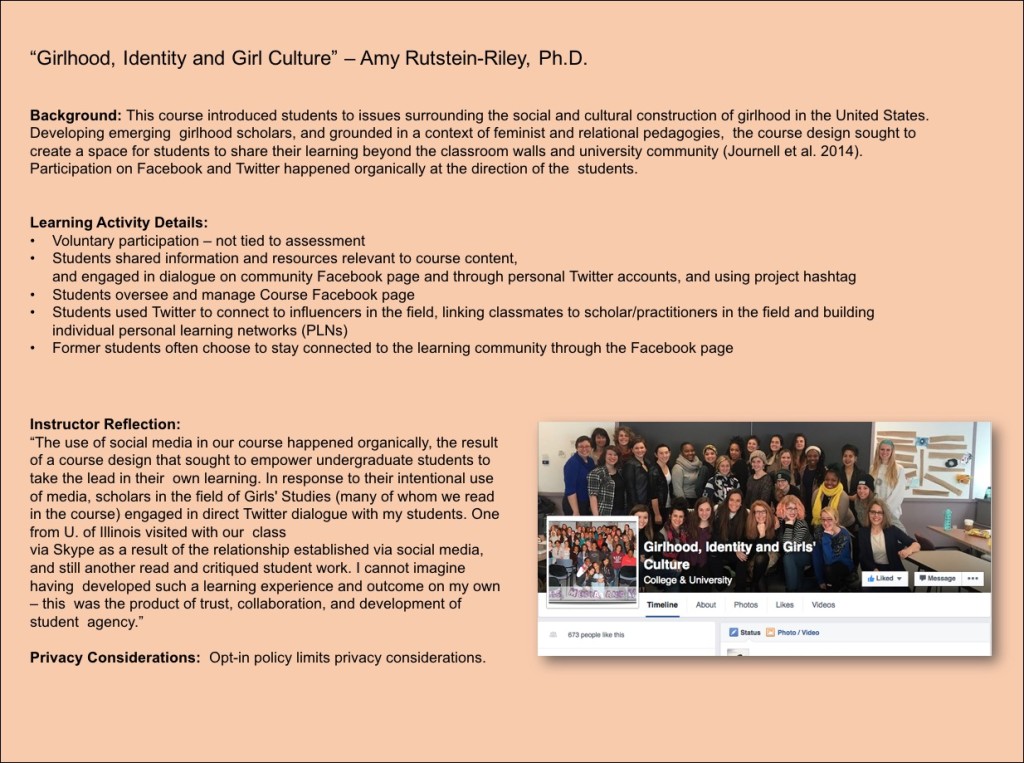
Below are four case studies from Lesley University faculty members to offer further insight into best practices for teaching and learning with social media.

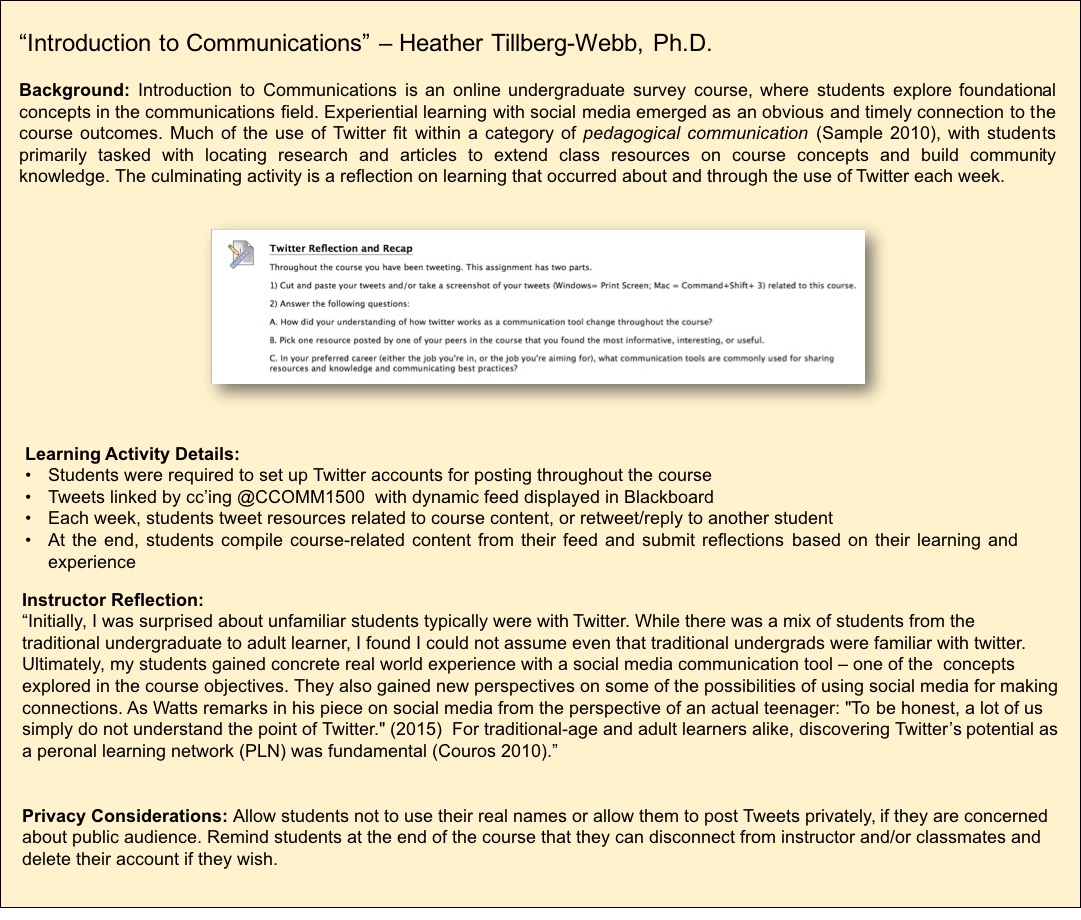
Communities of Practice
ARR_Casev3

Real-World Inquiry

Heather_Case

Professional Development

Susan_Casev2

Instructor Communication

Josh_Case

Intersections

Although social media was used for different purposes in each of these cases, some common threads tie them together. The following are recommendations for teaching with social media based on the intersections in these cases.

  • Connect instructional use of social media to learning outcomes (Bosman& Zagenczyk 2011)
  • Provide very basic instructions for students to get started
  • Explain basic functionality and norms of the social media tool
  • Build specific activities into course design
  • Scaffold opportunities to interact with peers and others
  • Respect student privacy across student-led and instructor-led experiences
  • Educate students about privacy considerations and appropriate use
  • Articulate communication protocols and norms for each class
  • Plan for maintenance of communities in between class settings


Conclusion

Best Practices for Teaching with Social Media, Instructor-Led Assignments

  • Provide option to opt-out or alternate assignment
  • Provide option not to use real names or real locations
  • Link to basic tutorials
  • Let students know that they can delete accounts or “unfriend” in the end
  • Connect assignment to learning outcomes and assess learning according to rubric
  • Never provide individual feedback to students publicly

Best Practices for Student-led Social Media Use

  • Students should present themselves authentically and adhere to institution social media policy
  • Apply best practices of instructor-led assignments where applicable

Integrate the social media within the course site

  • Link the social media participation to the course in the LMS through dynamic RSS feed and/or links to the course hashtag


Next Steps

What did we gain from our inquiry? We were able to identify three key areas for further work.

Faculty Professional Development

  • Promote institutional community building with social media (upcoming: #ToleranceDay @lesley_u)
  • Provide workshop for faculty on analyzing social media platforms (January 2016)
  • Evaluate need to offer existing online seminar Using Twitter to Develop a PLN in Spring 2016

Enhancement of Institutional Policy

  • Extend existing Appropriate Use Policy with expanded Social Media Policy

Exchange of Curricular Materials Using Social Media

  • Create space for sharing sample assignments, rubrics and instructions amongst faculty teaching with social media

To learn more about initiatives related to teaching and learning with social media at Lesley, look us up on twitter @lesleyelis.


References

Bosman, L., & Zagenczyk, T. (2011). Revitalize your teaching: creative approaches to applying social media in the classroom. In B. White, I. King & P. Tsang (Eds.), (pp. 3-15) Springer Berlin Heidelberg.

Couros, A. (2010). Developing personal learning networks for open and social learning. Emerging technologies in distance education, 109-128.

Englander, E. (2013). Bullying and cyberbullying: what every educator needs to know. Cambridge, MA: Harvard Education Press.

Herbert, M. (2006). Staying the course: a study in online student satisfaction and retention. Online Journal of Distance Learning Administration, 9(4).

Journell, W., Ayers, C. A., & Beeson, M. W. (2014). Tweeting in the classroom: Twitter can be a smart instructional tool that links students with real-time information and connects them to authentic discussions beyond school walls. Phi Delta Kappan, 95(5), 53.

Sample, Mark. (2010, August 16) A framework for teaching with Twitter. Chronicle of Higher Education. Retrieved from http://chronicle.com/blogs/profhacker/a-framework-for-teaching-with-twitter/26223

OneNote: Note Taking Made Easy

Are you looking for an easy way to take notes on the go? Do you want to access your notes across all of your devices? Do you want to share and collaborate on notes? Yes? Let me introduce you to OneNote.

Microsoft OneNote product logo

What is OneNote?
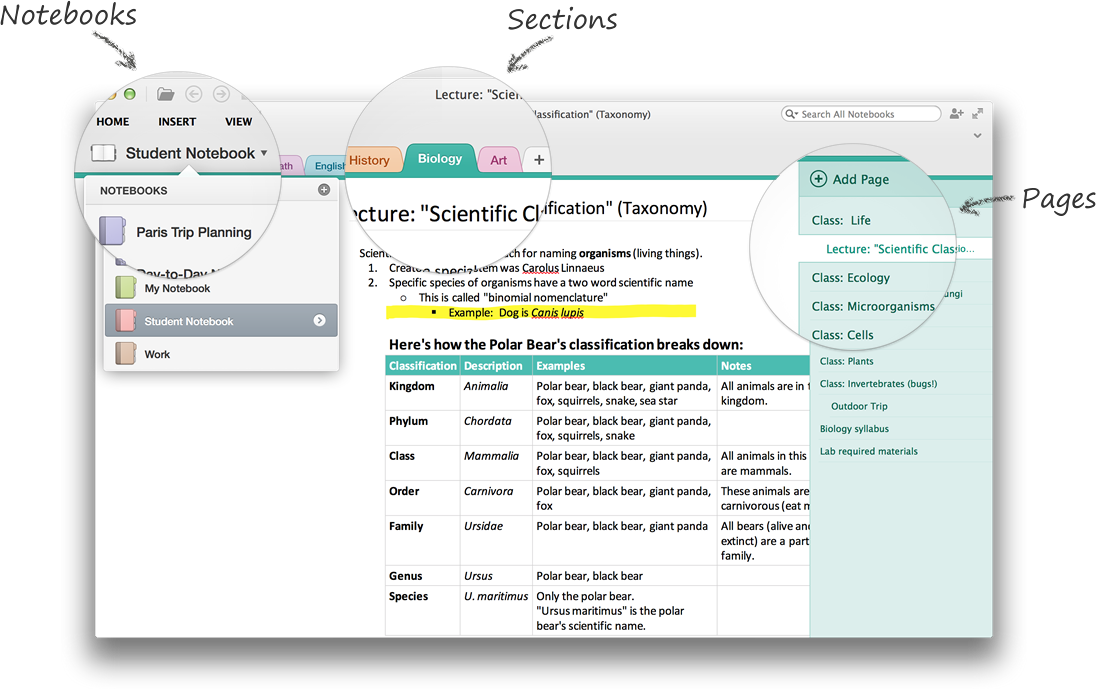
OneNote is Microsoft’s digital notebook, allowing you to create and access your notes across all of your devices: PC, Mac, phone, tablet, and web.

Welcome to OneNote

Image from Microsoft

OneNote allows you to:

  • Create notes, to do lists, manage projects, and more.
  • Organize your notes with six levels of organization: notebooks, sections, subsections pages, and two levels of subpages.
  • Share and collaborate in real time.
  • Add multimedia items (audio, video, images, etc.) anywhere within a note.
  • Insert new or existing Microsoft Office content into your notes.
  • Clip any web page to OneNote and view it later, whether you are online or offline.
  • Set up Email to OneNote to allow you to send an email directly to OneNote, automatically creating a new note.
  • Create or edit notes offline and sync your notebook when you’re back online.

Wait, didn’t you already post about a note taking app?
Yes, Evernote is another useful tool for taking notes. You can find out more about Evernote in our previous post: Taking Notes Across your Devices

Should I use OneNote or Evernote?
As with most things, it comes down to personal preference. A few good breakdowns of the tools and side-by-side comparisons can be found here:

I’d like to try OneNote. How do I get started?
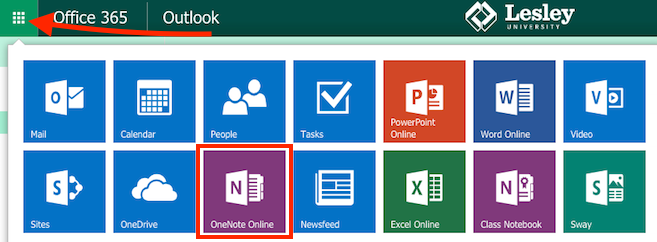
To get started with OneNote Online, log into your Office 365 account (http://lesley.edu/email), click the Apps button, and select OneNote Online.

access OneNote

To get started with OneNote on your computer, phone, or tablet, download the software for your device(s):

You will need to log in with your Office 365 Account using your Lesley email address and password.

For more information on using OneNote, see:

ARTstor Digital Library: A place of visual primary sources

ARTstor is a digital library full of images for you to use for classroom instruction, especially if you want to integrate visual literacy. Its title can be a bit deceiving but ARTstor’s true focus is less about discipline and more about giving educators online access to over 1.8 million authoritative visual primary sources. You and your students will discover content from a wide range of museums, archives, libraries, and other types of cultural heritage institutions that span various time periods, movements, and cultures.

Check out what collections are available, http://www.artstor.org/collections. Some of the collections used with students doing research include:

Not only does this educational technology have visual resource collections, it allows easy integration into your online classroom environments. Some great tech features include curating groups of images sharable in Blackboard, links to share on blogs, and generate of PowerPoint presentations. Any images collected using ARTstor’s image group feature automatically live in the system so you never have to worry about losing them or your image presentation. Please be advised that ARTstor registration is required to use the tool!

If you want to learn how to use ARTstor there are a number of resources that come in various formats ranging from videos, written instructions, and in-person help. Visit the websites below or find help in at the Moriarty Library 

ARTstor Help Resources
Moriarty Library’s ARTstor Help Guide
ARTstor’s YouTube
ARTstor’s Knowledge Base

Contact a Librarian for help!
Kate Thornhill, MLIS
Research and Instruction Librarian for Digital Scholarship
Moriarty Library
617-349-8070
kthornhi@lesley.edu

Attaching Files in the myLesley Text Editor

In this week’s exciting Agent L episode, we outwit Gremlins in the System’s (GITS) fiendish plot to prevent faculty from sharing important course files and resources.

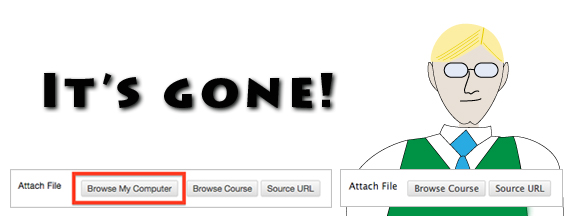
Ben Friday: Agent L, we have an emergency!!! GITS has struck again. The Browse My Computer button has been removed from the Insert File window in the text editor. Faculty can’t upload attachments when creating their content. How are they supposed to share files with their students.

Agent L: Calm down, Ben. Show me what you’re talking about. I’m sure we can fix this.

Ben: (takes deep breath) OK. Go to the text editor anywhere in myLesley and click on the Insert File button.  

myLesley text editor

There should be three buttons including Browse My Computer which allows faculty and students to attach files from their personal computer, but now there’s only two.

browse computer button missing

Ben: How are faculty supposed to share their syllabus or study guide or readings or…

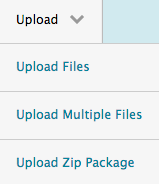
Agent L: Wait, Ben. Stop. Let’s take a closer look. What happens if we click on the Browse Course button? Hmmm… that appears to let us look through all the files already uploaded to the course. And look, there’s an Upload option.

browse course content

Ben: What does it do?

Agent L: I think it will let us upload and attach the files we want to share. I’m going to try it.upload files menu

Look I can click on Choose File and select the file I want to attach from my computer.

choose file

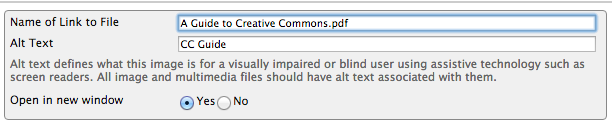
After l selecting my file, I click Submit to upload it to the course.  Then click Submit again to select it as the file I want to attach. Great, now I can edit the Name of the Link to File to something more reader friendly than the file name and add Alt Text for accessibility. Click Submit one more time.

edit file display info

Agent L: Voila! I’ve done it. There’s my file.

Ben: Amazing work, Agent L. That will teach  GITS not to mess with us.

Agent L: I live to outsmart GITS.

agent LLearn more about using the myLesley text editor at the Agent Support Site.