Blackboard IM: A Brief Survey of One Lesley Professor’s Experience

BBIM

Dr. Paul Naso, an assistant professor in the PhD in Educational Studies Program at Lesley GSOE, has adopted Blackboard Instant Messaging for a variety of communication tasks.  Below is a list of some small steps he and his students have taken during recent semesters:

In his online course Critical Contexts for the Principalship:

  • Office hours, by appointment meetings, and occasional unscheduled meetings with students
  • Use of audio, video and text message functionality
  • All students were Bb IM users and approximately 75% of students used Bb IM frequently for within-cohort interactions, in pairs or small groups

As part of the online component of Adult Learning and Development Semester IV:

  • Office hours, by appointment text chat
  • Audio chat with students to get individual feedback on plans for how they would approach their assignments

In the Educational Leadership PhD specialization:

  • Unscheduled, student-initiated text chats to
    • Check-in about program requirements, program schedules
    • Request suggestions for research topic literature
    • Schedule appointments

Through his use of Blackboard IM so far, Paul has observed that as the numbers of his students using the tool increases, the more uses for it become evident.

If you would like to learn more about Blackboard IM please review the help documentation on the eLIS website.

Using VoiceThread In Counseling Courses

irle_vt-screenshot

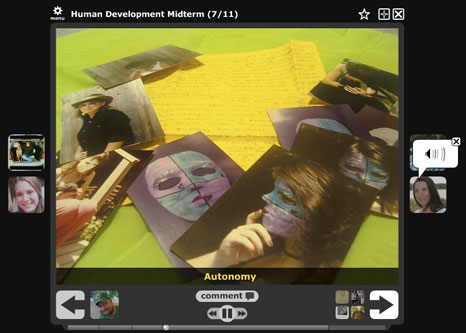
Student, Cheri Weber’s midtern created for Irle Goldman’s Human Development course.

WHY I LIKE AND USE VOICETHREAD In My Counseling Courses
By Irle Goldman, PhD

  1. Counseling is a relational, symbolic and creative experience. Having students describe it in a paper makes it too one-dimensional. It looses it’s depth and possibilities. Voicethread allows us to add pictures, voice, and video to create a richer, more useful and communicative product.
  2. Voicethread allows the students to see each other’s work and learn from it. You have a more relational/mutual educational experience.
  3. Voicethread allows students to react/respond to each others’ work in a way that’s easy to see and connect to. This helps to build community for the class.
  4. Voicethread allows you to see the whole picture… all of the classes creations in one screen; all the pages of individual creations in another screen. I get a better sense of the whole gestalt.
  5. Because of this, it is easier to mark. You can see what is included and missing in one-fell-swoop.
  6. What the students produce is much more interesting to read/see/hear.
  7. Because it uses so many modalities (kind of like life) the students tell me that it’s more interesting to create. They can start from a picture or a text or a song and build their piece of work around any of these and add to it and re-organize it.
  8. I have used it for projects, for midterms and for finals in my Theories of Counseling and Human Development classes.
  9. It is always available in the cloud.
  10. It can be archived in a student’s portfolio.

Challenges: It takes a while to learn how to connect and use it and I have not yet figured out the way to communicate with students individually on it.

Join Irle Goldman, Licensed Clinical Psychologist and Adjunct Faculty and Liv Cummins, Asst Professor of Drama and Literature for a lunchtime conversation about VoiceThread on Feb. 27th at 12pm in UNIV 3-098. They will discuss the different ways they have used VoiceThread in their courses and answer questions.


World Drama Literature Conversations with VoiceThread

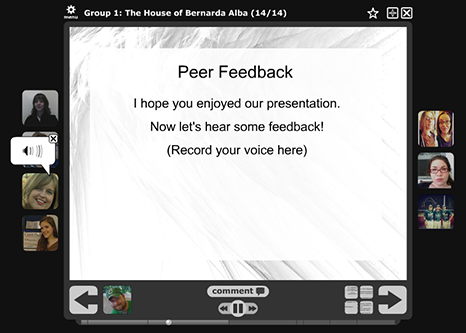
Screenshot form student, Sadie Allen's World at Play presentation created for Liv Cummins' World Drama Literature online course.

Student, Sadie Allen’s World at Play presentation created for Liv Cummins’ online World Drama Literature course.

According to the eLIS website, “VoiceThread allows you to place collections of media like images, videos, documents, and presentations at the center of a conversation. These conversations are not live; they take place whenever and wherever it’s convenient for people to participate. A VoiceThread allows people to have conversations and to make comments using any mix of text, a microphone, a webcam, or uploading an audio file.”

To me, the key word in that definition is “conversation”: you can look at images and text slides, and talk about them at the same time through voice narration.  What attracted me to this tool was the way you can use voice to raise questions about images and text, just as you would in the face-to-face classroom.

In my online World Drama literature course, I used Voicethread as a vehicle for my students to present research projects on a dramatic work and time period.  I wanted to translate this assignment, the ‘World of the Play’ group project, from the face-to-face classroom to the online environment to maintain a learning goal for the course: to strengthen oral communication skills.  I also wanted Voicethread to help build our online community, allowing peers to truly talk to each other and connect with one another and, thus, increase their engagement in the course.

I also used this tool with another assignment where students create a set design, cartoon, or poster for a play – or, alternatively, write a series of poems or letters from one character to another – to explore a work’s characters, theme(s), and cultural / historical context.  They create their project and then present it in Voicethread to the class, narrating the rationale behind their creative choices.  At the end of both projects, students offer feedback in either voice or text format appearing with their picture, allowing student presenters to see their peers and hear (or read) their feedback, all in one place around one slide at the end of the project.

In the online classroom, a potentially sterile environment can be enlivened with the warmth of human interaction through voice.  Narrating a visual allows students to take ownership over the slides they choose to show, explaining choices and meaning to demonstrate their learning while strengthening oral communication skills.  The tool is flexible: you may want to use one slide only to discuss at length (a piece of art, for example), or many slides compiled together for a longer presentation.  You can also integrate video clips, making it easy to move from a video, to a photograph, to an image with text, for example, within one project.   Finally, students and faculty can discuss a project within that same project around one slide, making feedback easily accessible to post and refer to at any time.

There can be some difficulties with this tool, however, as with all technology.  You should probably assume most people are unfamiliar with Voicethread, so it’s a good idea to build in time to learn and use it within a course.  Also, you need a separate Voicethread account to access something within it, so again, in the beginning of a course, there can be some confusion around how to establish an account and then access it.  There are also some oddities of the tool, including issues around pausing in the midst of an audio clip to stay longer on one slide – which can be frustrating.  In the end, though, most of these problems can be conquered through practice.

I look forward to showing some Voicethread examples and discussing effective practices for the tool on 2/27.

Liv Cummins
Asst. Professor of Drama and Literature
Humanities Division, LA&PS

Join Liv Cummins, Asst Professor of Drama and Literature, and Irle Goldman, Licensed Clinical Psychologist and Adjunct Faculty, for a lunchtime conversation about VoiceThread on Feb. 27th at 12pm in UNIV 3-098. They will discuss the different ways they have used VoiceThread in their courses and answer questions.


Advice for Your First Web Conference

to_do
Advice for your first web conference
The first time your class meets virtually can be daunting. If you’re not practiced at web conferencing, it may feel awkward and foreign. You probably felt pretty nervous the first time you walked in front of a classroom of students, too. Here are a few tips to turn you into a web conferencing pro:

Create a sketch of the session
List your main goals and how you hope to accomplish them. Create an outline or “storyboard” of your session. Consider what features of the web conferencing software you will use and make note of any additional resources you will need such as links to websites, images, etc.

Keep it simple
Don’t try to use everything. You don’t need to use every tool in the software. Pick a few key ones and then focus on the content and communication. You don’t want your meeting to be about the tool. Don’t try to do too much in one session. If it’s your first online class meeting, your students may need to adjust to a different way of interacting. Keep your main goal in mind.

Include interaction
You may not be in the same room with your participants, but you can still interact with them. Consider including an icebreaker activity at the beginning of the session. If the group is small, give everyone a chance to introduce themselves. Ask them questions. If there’s a polling tool or emoticons, use it to get quick feedback. Avoid too much text and use graphics that work with your content.

Managing participation
Plan in advance how you will manage questions or comments from participants. Is there a “Raise Hand“ to request the microphone or get your attention? Will they type in the chat window? Send you a private chat message? Let participants know how they are expected to participate at the outset of the session. Being clear will help ease any confusion.

Practice, Practice, Practice
Do a dry run of your session using all the tools you will use in the real session. Treat it like a dress rehearsal. Invite a friend or colleague to be your “student.” The more comfortable you are with the virtual space and its tools, the less you have to think about them. This allows you to focus on your students and the presentation material.

Self-evaluate
Do a little self-reflection after the session. What worked? What didn’t? Why? What might you want to do differently next time? It’s easy to skip this important step, but don’t. Review while the session is still fresh in your mind.

eLIS Staff Present at Northeast Regional Learning Analytics Symposium

nerla

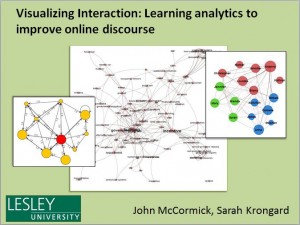
Instructional designers John McCormick and Sarah Krongard presented at the Northeast Regional Learning Analytics Symposium in Southbridge, MA on January 25th. NERLA is part of NERCOMP, a regional arm of EDUCAUSE.Their presentation was titled Visualizing Interaction: Learning Analytics to Improve Online Discoursehighlighting exploratory action research on the use of an analytics tool that shows real-time visuals of online discussion interaction patterns. Learning analytics is an emerging field in education highlighted in the Horizon Report as 2-3 years from mainstream adoption, along with game-based learning.